DevFest Samsun 2026 · Hands-on lab · about 20 minutes
Deploy your first AI agent to Google Cloud
Part of The Google Cloud Stack for Production AI Agents by Omar Elcircevi
You'll take a ready-made agent, the DevFest Samsun Assistant, and run it in Cloud Shell. Then you'll deploy it to Agent Runtime on Google Cloud and explore it in Agent Platform. You don't write any code, and you don't install anything on your laptop.
What you need
- A laptop with a browser. Chrome works best.
- A personal Google account (Gmail). Work and school accounts often block Cloud Shell or credits.
- The credit link in Step 1.
The agent
The DevFest Samsun Assistant answers questions about this event's real schedule: which talks are on, when, and on which floor. It's built with Google's Agent Development Kit (ADK). It has one Gemini model, one instruction and a few Python functions it can call as tools.
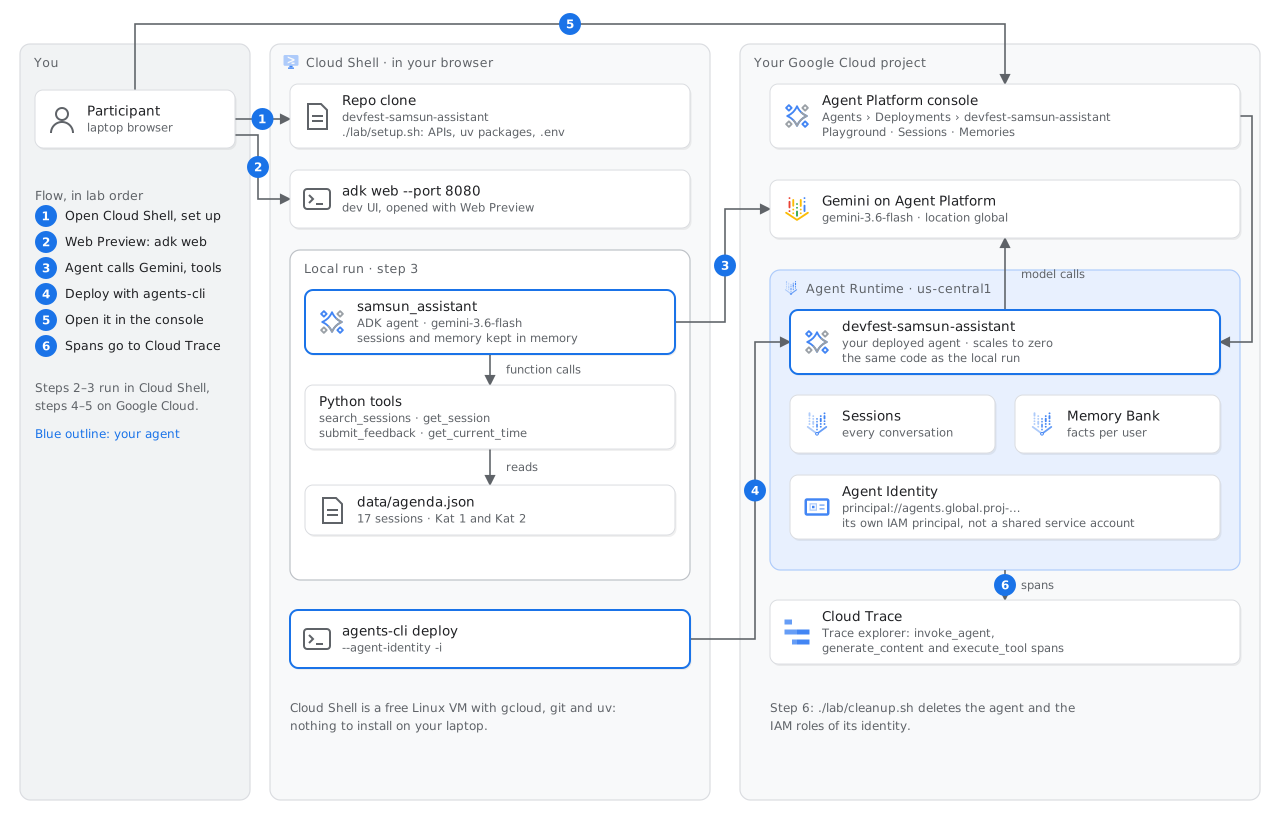
The steps
Step 1: Get your credits and a project
Open the credit link while signed in with your personal Google account: [CREDIT_LINK]
Follow the page to accept the credits. This creates a billing account that uses them.
Open the Google Cloud console: https://console.cloud.google.com
Create a project:
- Click the project picker at the top of the page, then New project.
- Project name:
devfest-samsun-agent - Billing account: pick the one with your credits.
- Click Create.
Note your Project ID. It's shown under the name and may have numbers added, for example devfest-samsun-agent-482913.
Step 2: Open Cloud Shell and get the code
Open in Cloud Shell: it clones the repo and opens a step-by-step tutorial next to the terminal.
In the Open in Cloud Shell dialog, tick Trust repo and click Confirm. If you do not select Trust repo, Cloud Shell runs in ephemeral mode and deletes your files when the session ends. Cloud Shell clones the repo to ~/cloudshell_open/devfest-samsun-assistant, opens the terminal in that folder and the tutorial panel on the right. If asked, click Authorize.
With the button you skip git clone and cd: follow the tutorial panel. Its first step runs gcloud config set project, ./lab/setup.sh and source ~/.profile.
Or do it by hand
Click Activate Cloud Shell (the >_ icon) at the top right of the console. If asked, click Continue and then Authorize.
Point Cloud Shell at your project. Replace YOUR_PROJECT_ID with your Project ID:
gcloud config set project YOUR_PROJECT_ID
Get the code and run the setup script:
git clone https://github.com/omarcevi/devfest-samsun-assistant.git
cd devfest-samsun-assistant
./lab/setup.sh
source ~/.profile
The script:
- checks that billing is linked to your project
- turns on the Google Cloud APIs this lab needs
- installs the agent's Python packages and the Agents CLI
- writes a
.envfile so the agent uses Gemini in your project
It takes 1–2 minutes. The last line, source ~/.profile, makes your shell use the Agents CLI version the script just installed (Cloud Shell ships an older one).
✅ Ready. If it stops with an error, the message says what to fix. See also Troubleshooting at the end.Step 3: Talk to your agent locally
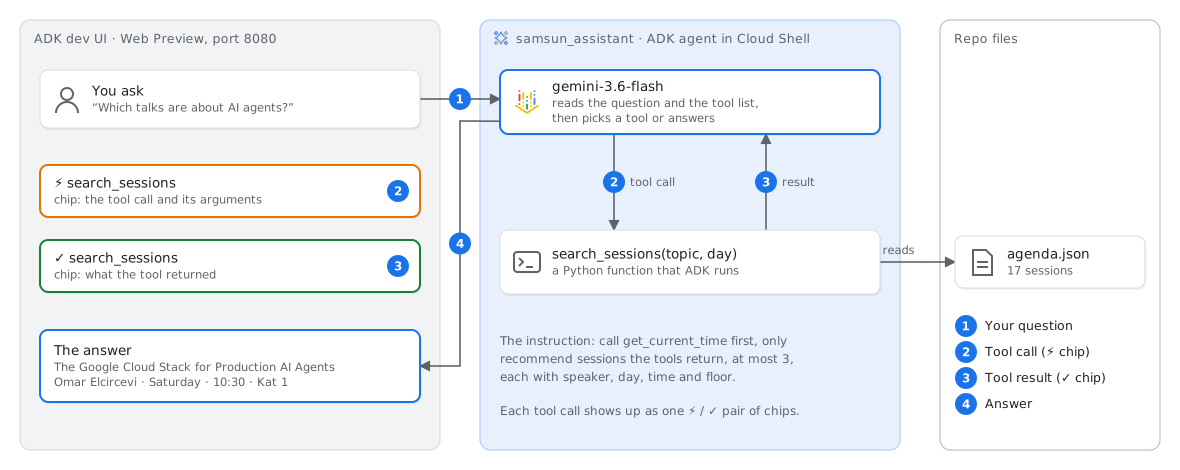
Start the ADK dev UI:
uv run adk web --port 8080 --allow_origins "*"
--allow_origins "*" lets the Cloud Shell Web Preview page talk to the dev UI. Without it the page stays blank.
At the top of Cloud Shell, click Web preview (the eye icon), then Preview on port 8080. A new tab opens.
In the top-left dropdown, check that the agent app is selected.
Ask it something:
Which talks are about AI agents?
What's on Kat 2 tomorrow?
Yarın Flutter ile ilgili hangi konuşmalar var?
The first answer can take 20–40 seconds.
Above each answer you'll see small chips: ⚡ search_sessions is a tool call, ✓ search_sessions is its result. Click one to see the arguments and the result in the left panel. That's the agent loop: the model picks a tool, reads the result, then answers.
Go back to Cloud Shell and press Ctrl+C to stop the dev UI.
cloudshell edit app/agent.py. It's under 30 lines.Step 4: Deploy it to Agent Runtime
![What agents-cli deploy --agent-identity -i does. In Cloud Shell, agents-cli asks Proceed? [Y/n] and packages the project folder: app/, Dockerfile and .env. (1) It uploads the code. (2) A container build runs in a Google-managed project. (3) It creates the Agent Runtime instance devfest-samsun-assistant in us-central1: a container with ADK and FastAPI that scales to zero when idle, Sessions and Memory Bank managed by Agent Runtime, and its own Agent Identity, principal://agents.global.proj-PROJECT_NUMBER.system.id.goog/…. (4) The identity gets IAM roles on your project, such as Agent Platform user, Logging writer and Monitoring writer. (5) After about 5 minutes, Cloud Shell shows Deployment successful! with the agent ID and its Agent Identity.](/workshops/devfest-samsun-agent/diagrams/step-4-deploy.svg)
Run:
agents-cli deploy --agent-identity -i
- It asks
Deploying to Google Cloud project 'YOUR_PROJECT_ID'. Proceed? [Y/n]. Check that it's yours and press Enter. (-iturns this prompt on; without it, the command stops and asks you to name the project.) - You can ignore the warning about
npx. - It packages your code, uploads it and creates a managed agent that scales on its own.
--agent-identitygives your agent its own identity in IAM, instead of a shared service account.- It takes about 5 minutes. Leave it running and watch the demo on stage while you wait.
✅ Deployment successful!, followed by your agent's ID and its Agent Identity.The deploy keeps running on Google Cloud even if Cloud Shell disconnects. Click Reconnect, go back to the repo folder (cd ~/cloudshell_open/devfest-samsun-assistant if you used the Cloud Shell button, cd devfest-samsun-assistant if you cloned by hand), then check progress with:
agents-cli deploy --status
Step 5: Meet your agent in Agent Platform
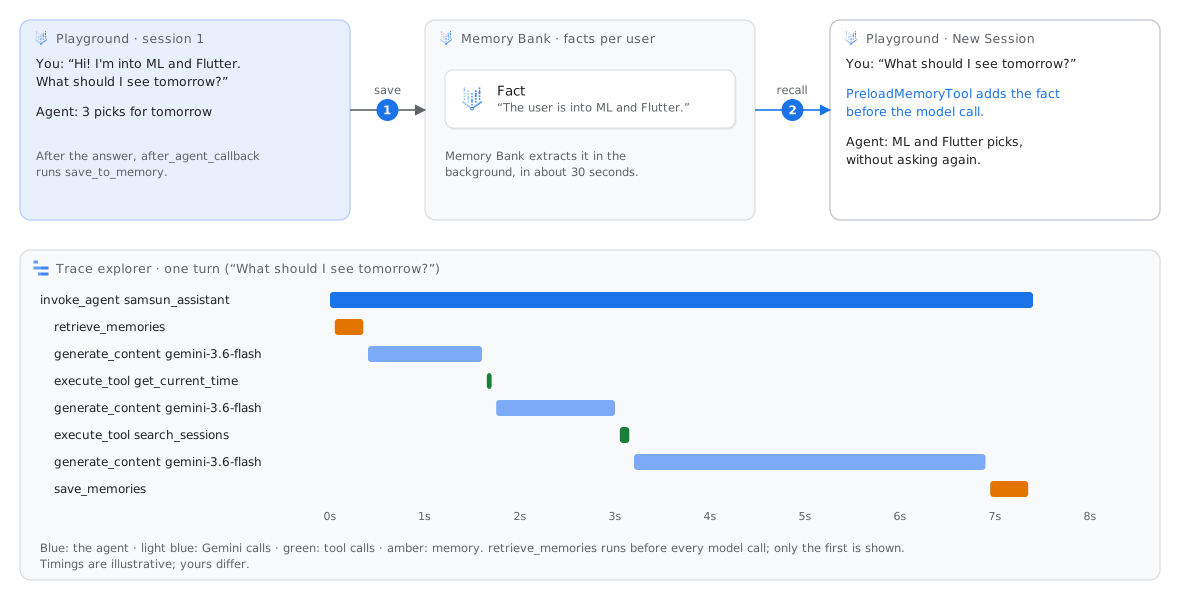
In the console's search bar, type Agent Platform and open it. In the left menu, click Agents, then Deployments (under Scale).
Click your agent: devfest-samsun-assistant. If a pop-up says an API isn't enabled, click Close.
Playground: chat with your deployed agent. Try:
Hi! I'm into ML and Flutter. What should I see tomorrow?
- Wait about 30 seconds, click New Session and ask
What should I see tomorrow?. Does it remember what you like? That's Memory Bank. - The first answer can take up to a minute while your agent wakes up.
- In the Playground, click a ⚡ chip to see the tool call, and State on the left to see what the agent kept in its session.
Sessions tab: every conversation you just had, stored by Agent Runtime.
Memories tab: the facts Memory Bank kept about you, such as your interest in ML and Flutter.
Traces: in the console's search bar, type Trace explorer and open it. Each row is one step of your agent: invoke_agent, generate_content (a Gemini call) and execute_tool (a tool call). Click one to see the timeline, the same view Omar showed on stage. Traces show up a minute or two after you chat.
You've now seen the questions from the talk answered on your own agent:
- where it runsAgent Runtime
- what it remembersSessions and Memory Bank
- who it acts asits Agent Identity
- what it's doingTrace
Step 6: Clean up
Your credits are limited. When you're done, delete the agent:
./lab/cleanup.sh
You can also shut down the whole project: in the console, go to IAM & Admin › Settings › Shut down.
You can keep the agent until the end of DevFest on Sunday if you want to play with it more.
No laptop?
Use the shared assistant on your phone: omarcevi.dev/demos/devfest-samsun-agent
Troubleshooting
./lab/setup.sh again.PERMISSION_DENIED or "API not enabled" right after setup429 or RESOURCE_EXHAUSTEDadk web is still running in Cloud Shell and that you used port 8080.cd ~/cloudshell_open/devfest-samsun-assistant (Cloud Shell button) or cd devfest-samsun-assistant (cloned by hand).agents-cli: confirmation required-i to the deploy command, as shown in Step 4.agents-cli --version doesn't say 1.11.0source ~/.profile. Cloud Shell has an older Agents CLI built in; this switches to the one setup.sh installed.npx isn't installedapphub.googleapis.com isn't enabledLearn more
- Agent Development Kit (ADK): https://google.github.io/adk-docs
- Agent Runtime and Agent Platform: https://docs.cloud.google.com/gemini-enterprise-agent-platform
- Agents CLI: https://pypi.org/project/google-agents-cli/
- This lab's code: https://github.com/omarcevi/devfest-samsun-assistant