Step 1 · Set up
In this step, you put the repo in Cloud Shell, enable the APIs, and deploy the three MCP servers that the agent calls.
checkpoint branch step-1-setup
How it works
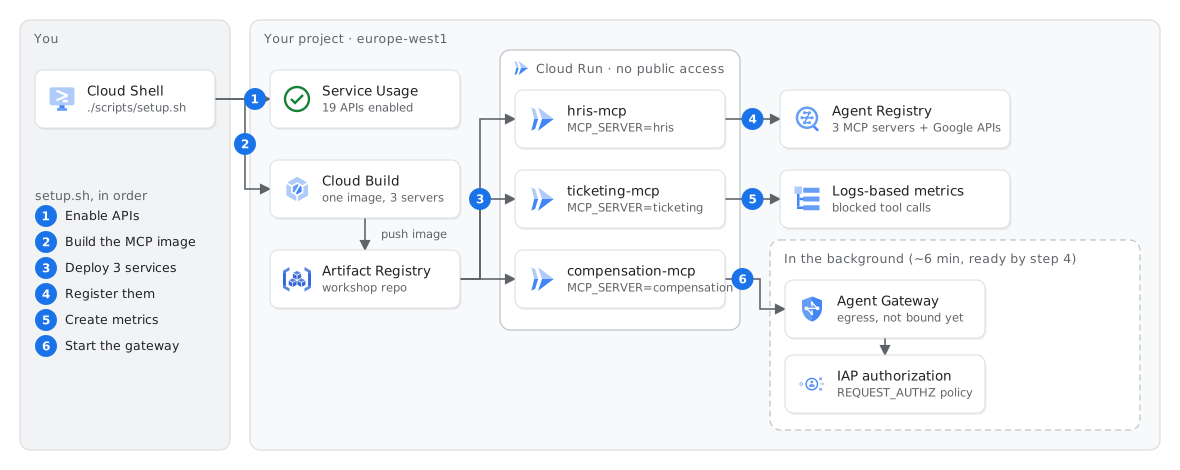
setup.sh creates. Steps 1–5 take two to four minutes. The creation of Agent Gateway continues in the background.Each tool server is a service with an owner. The HRIS, ticketing and compensation systems are separate MCP servers on Cloud Run (FastMCP, streamable HTTP). One image serves all three servers. An environment variable selects the server. Each service accepts only callers with roles/run.invoker. No service has a public URL.
Read-only tools have a label. Each tool has MCP annotations, for example readOnlyHint. Agent Registry keeps them with the tool list. Gateway policies can use them.
Agent Gateway starts now, because it takes time. The creation of Agent Gateway and its IAP authorizer takes about six minutes. setup.sh starts this work in the background. You use Agent Gateway in step 4.
Run
The button copies the repo into Cloud Shell. It also opens a tutorial panel that shows the commands for each step, each with a copy button. Keep this guide open for the explanations.
In the Open in Cloud Shell dialog, select Trust repo. Then click Confirm. If you do not select Trust repo, Cloud Shell runs in ephemeral mode and deletes your files when the session ends. Google's documentation also says that these sessions do not get your credentials.
When Cloud Shell asks to use your credentials, click Authorize. Click the button only one time, because each click makes another copy of the repo. You can also open Cloud Shell and clone the repo yourself. Then run these commands:
# skip the clone if you used the Open in Cloud Shell button
git clone https://github.com/omarcevi/cloud-agents-workshop.git
cd cloud-agents-workshop

gcloud config set project YOUR_PROJECT_ID
uv tool install --force "google-agents-cli>=1.11"
export PATH="$HOME/.local/bin:$PATH"   # Cloud Shell has an older agents-cli in /usr/local/bin
./scripts/check.sh 0                 # tools, login, billing
./scripts/setup.sh                   # APIs, MCP servers, registry (about 2 min); the gateway keeps building in the background
Expected result
Check
./scripts/check.sh 1
The 403 response without a token is correct. No service on Cloud Run is open to the internet.
If this fails
agents-cli: command not found, or check.sh 0 reports an agents-cli older than 1.11/usr/local/bin. Cloud Shell uses it until ~/.local/bin is first on your PATH. Run the two install lines above again in this terminal. In a new Cloud Shell tab, also run the export line.check.sh 0./scripts/setup.sh again. The script does not create a resource again if it exists. If your organization does not allow default grants, give roles/cloudbuild.builds.builder to the Compute Engine default service account.FAILED_PRECONDITION or SERVICE_DISABLED immediately after you enable the APIs./scripts/setup.sh again..setup-gateway.log ends with GATEWAY FAILED./scripts/fallback_step4.sh.